Client settings
Open the Settings window with the Settings icon of the side panel menu (on phones: ☰ › Settings). It has three tabs: General, Hotkeys and Graphics / UI. Changes apply at once and are saved in this browser.
- General tab
- General tab: Profiles, Console and Other
- General tab: Mobile controls (touch screens only)
- Hotkeys tab
- Graphics / UI tab
- Recommended settings
ImportantSettings are stored in each browser or device. To take them to another computer or phone, use Export settings and Import settings (in the Profiles part of the General tab).
General tab
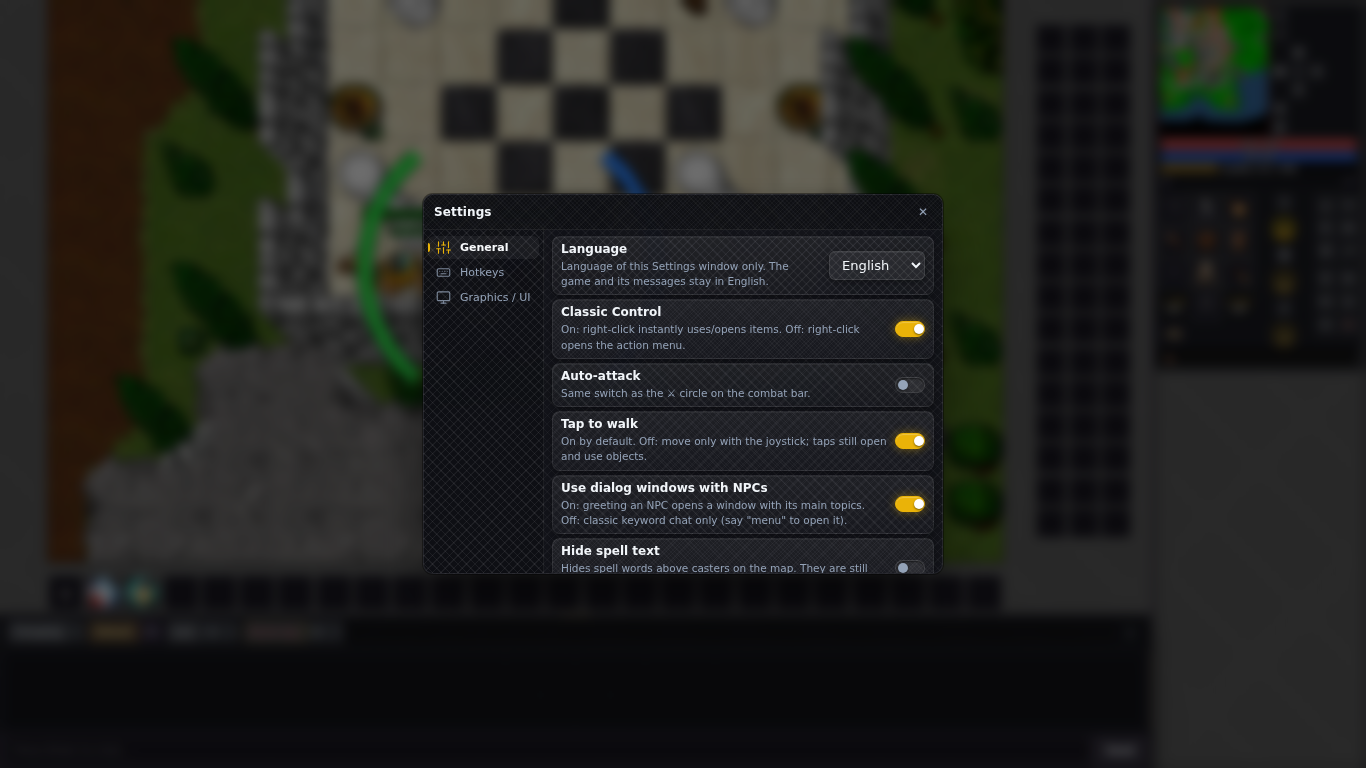
| Option | What it does | Default |
|---|---|---|
| Language | Language of the Settings window only (English or Español). The game and its messages stay in English. | English |
| Classic Control | On: right-click uses or opens items and attacks creatures at once; Ctrl + right-click opens the menu. Off: right-click opens the action menu. | On |
| Auto-attack | The same switch as the ⚔ circle on the combat bar. It only turns on when you switch it on; right-click the circle to choose the target (see The game client). | Off |
| Exiva vision | When you cast exiva, a short dream-like band shows the real place around the player you look for, with the player walking in it. Off: only the text answer. | On |
| Tap to walk | Touch screens: tapping a square walks there. Off: you move only with the D-pad or joystick; taps still open and use things. | On |
| Use dialog windows with NPCs | On: greeting any NPC opens a window with its topics as buttons. Off: classic keyword chat only. | On |
| Hide spell text | Hides the spell words above casters on the map. They still appear in the chat. | Off |
| Hide names | Hides the names above creatures, players and NPCs. Health bars stay visible. | Off |
| Keep screen awake | Stops the screen from going to sleep while the game is visible, if the browser allows it. | On |
| Show creature sounds in Default | Also writes monster sounds in the Default chat tab. Off: they only appear above the creature. | Off |
| Show loot in status bar | Loot messages always go to the Loot tab; on also shows them above the hotbar. | Off |
| Show damage and healing in Server Log | Off keeps Server Log to experience, level ups, warnings and look texts. | On |
General tab: Profiles, Console and Other
| Option | What it does | Default |
|---|---|---|
| Export settings | Download saves every client setting (layout, hotkeys, hotbars, chat, minimap marks) to a file you can load on another device. | — |
| Import settings | Load file… replaces your current settings with an exported file and reloads the client. | — |
| Supply assistant (this session) | Open your containers, then switch it on: it warns once in Server Log when a hotbar item (runes, vials, food) runs low or out, blinks its slot, and reminds you what is missing when an NPC shop opens. It switches itself off at every login. | Off |
| Warn when this many are left | From 0 to 50. The default for every item slot; each slot can change it from its own menu. 0 warns only when none are left. | 5 |
| Supply alert sound | Plays a sound with the supply warning. | On |
| Show timestamps in chat | Every chat line starts with the time it arrived. | On |
| Ignore private messages | Drops private messages from players. Players on your VIP list still reach you. | Off |
| Ignore yelling | Drops players' yells from the chat and the map. | Off |
| Show player level in chat | New chat lines from players show their level, for example Name [45]: hello. NPCs and creatures never show one. | On |
| Show ring and amulet timer | Shows the time left (m:ss) on equipped rings and amulets that run out. | On |
| Show supply use messages | Using a rune, potion or food from an open container shows Using one of N ... with how many you carry in open containers. | On |
The About line shows your client version; Copy copies it, which is handy when you report a problem. The list of changes is in the chat's Changelog tab.
General tab: Mobile controls (touch screens only)
| Option | What it does | Default |
|---|---|---|
| Movement control | D-pad (8 arrow buttons) or Joystick (classic) (drag the knob to walk). | D-pad |
| Control size | Small, Normal, Large or Extra large. The hotbar moves to make room. | Normal |
| Control opacity | From 40 to 100 %. Lower values let you see the map through the control. | 100 % |
| Left-handed (control on the right) | Moves the D-pad or joystick to the bottom-right corner. | Off |
| Menu buttons on the left | Moves the side buttons and the equipment drawer to the left edge. | Off |
| Minimap on the right | Off: the minimap sits in the top-left corner. | Off |
| Inventory side | Right or Left: equipment and the round hotbar go on this side, containers and the joystick on the other. Same as the ⇄ button. | Right |
| Game zoom | Auto, 1×, 1.5× or 2×: bigger characters and fewer squares. Auto picks the largest sharp size that still shows about 11 × 8 squares. The view never shows black borders. | Auto |
| Hotbar button size | Small, Normal or Large round hotbar buttons. | Normal |
| How to play on mobile | Show guide: full-screen setup and touch controls, step by step. | — |
| Touch controls | Open: the list of gestures (tap, double tap, long press, two-finger tap, hotbar) and tips. | — |
| Customize layout | Customize: drag any block of the screen (joystick, hotbar, chat, equipment, containers, minimap) and make it smaller or bigger. Saved separately for portrait and landscape. | — |
| Replay tutorial | Replay: the interactive tour of the mobile screen again. | — |
| Screen protector mode | Shorter long press (250 ms instead of 450 ms) and a little more movement allowed before a drag starts. Useful if a screen protector makes touches less precise. | Off |
| Vibration feedback | A short buzz on actions: two on a hotbar success, three on cooldown or failure. Not available on devices without vibration. | On, if the device vibrates |
| Chat input size | Small, Normal or Large chat text box and Send button. | Normal |
Hotkeys tab
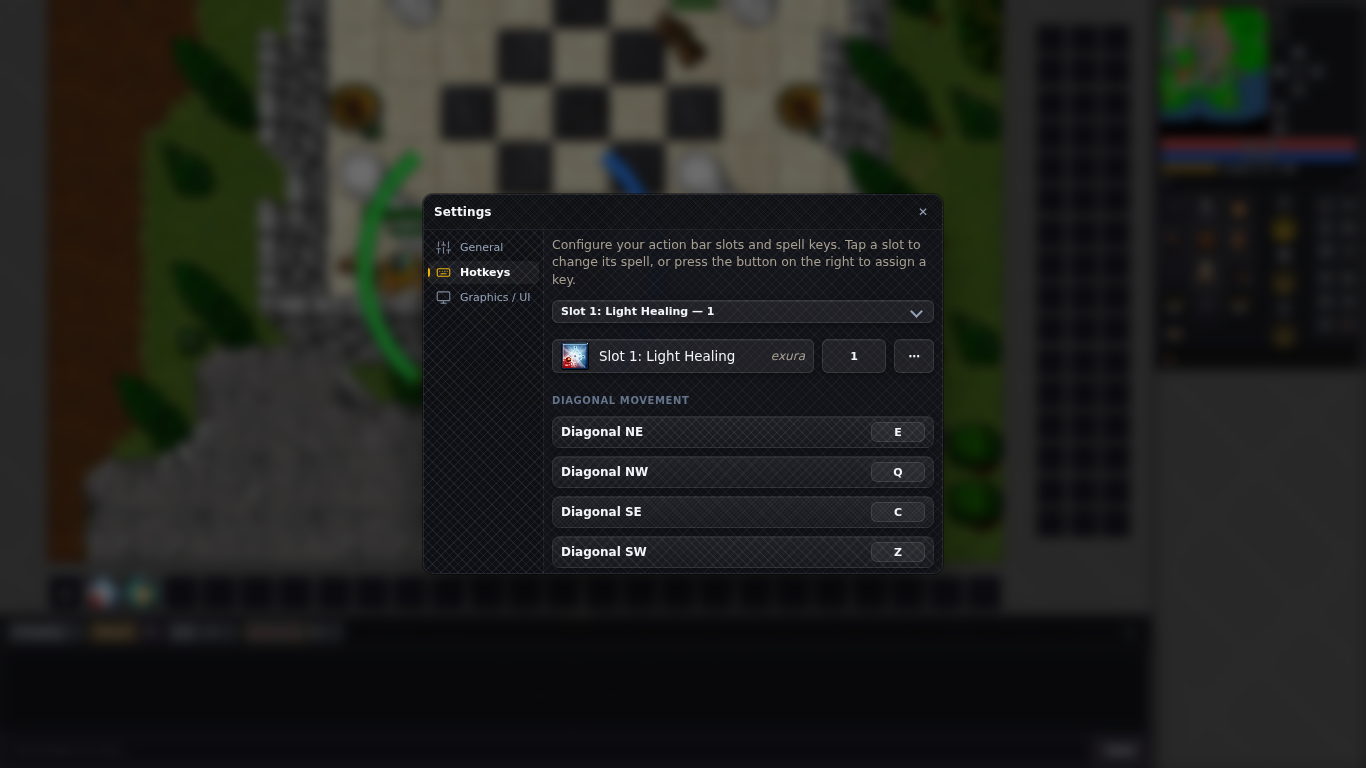
- Choose a slot in the drop-down list. Slots are grouped as Bottom bar (1–24), Left bar (25–36), Right bar (37–48), Left bar, rows 7–24 (49–84) and Right bar, rows 7–24 (85–120).
- The row shows what the slot holds. Click it to Pick a spell: spells are split into Instant and Conjure & runes, and only those of your vocation and level are offered.
- The key button assigns a key: press it, then press the key you want (Press key). Backspace or Delete removes the key, Esc cancels. Allowed keys: letters, numbers, the numeric keypad and F1–F10, alone or with Shift.
- The ⋯ button (Item, text or clear) closes Settings and opens the slot's menu on the hotbar, to put an item or a text in it or empty it.
- Diagonal movement: the four keys for walking diagonally (by default Q, E, Z and C).
Graphics / UI tab
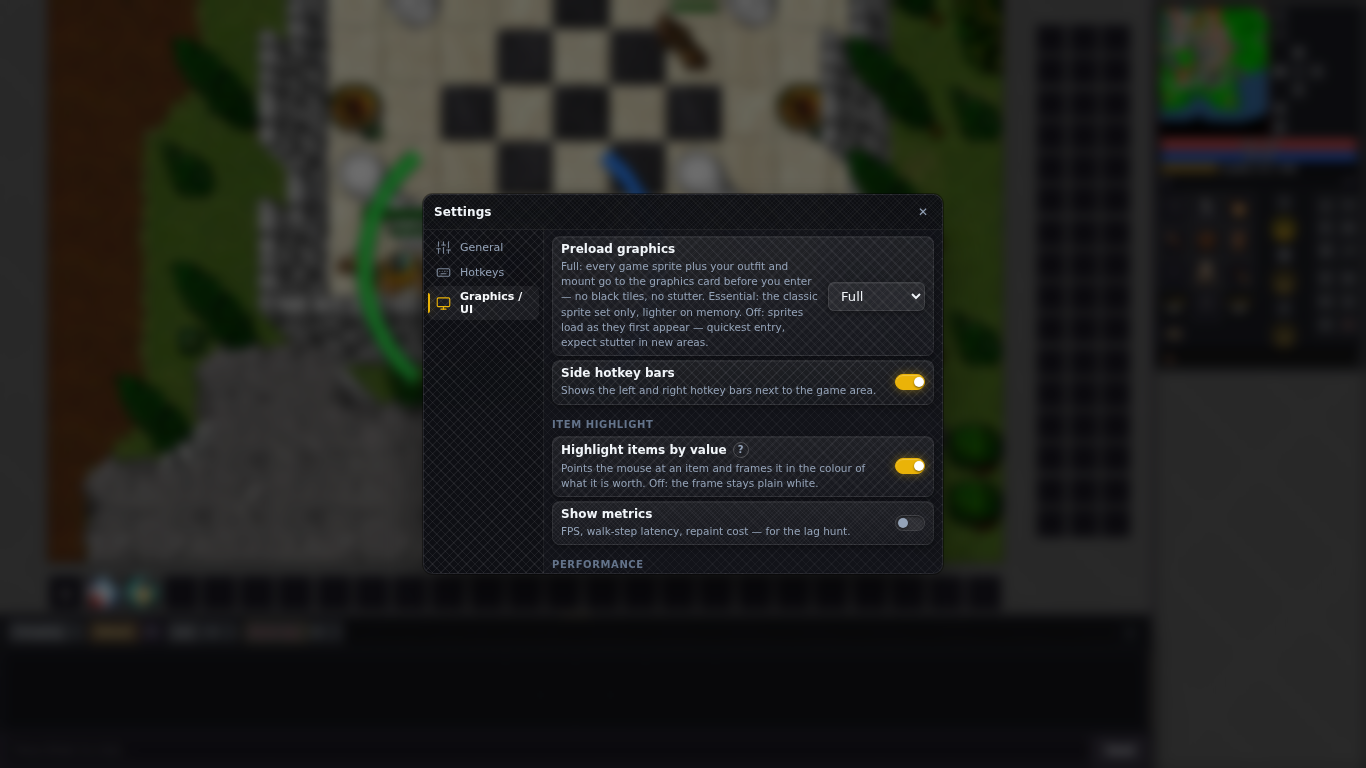
| Option | What it does | Default |
|---|---|---|
| Preload graphics | Full: every game image plus your outfit and mount is loaded before you enter, so there are no black squares or stutter. Essential: a smaller set, lighter on memory. Off: images load as they first appear; quickest entry, expect stutter in new areas. | Full (Essential on phones and devices with little memory) |
| Side hotkey bars | Shows the left and right hotkey bars next to the game area. | On with mouse and keyboard |
| Highlight items by value | When you point at an item on the ground, an outline that follows its exact shape lights up in the colour of what it is worth (in your backpacks, its frame takes that colour): green worth keeping (500 gold or more), blue high value (5,000 or more), purple top value (30,000 or more). Off: the frame stays plain white. Values come from what this world's shopkeepers pay, plus the known worth of rare items no shop buys. | On |
| Show metrics | Shows FPS, walk-step delay and drawing cost on screen, useful to find the cause of lag. | Off |
| Low Spec Mode | Freezes water, fire and other animated tiles on their first frame, shortens magic effects and caps the frame rate at 30 FPS. Creatures, items, fields and damage numbers stay visible. | Off |
| FPS limit | 30, 60 or Unlimited frames per second. Lower values save battery and reduce heat. Low Spec Mode always caps at 30. | 60 |
| Smooth graphics | Draws the game map at its original resolution and scales it up smoothly, like the official client's antialiasing: softer edges and every pixel the same size. Names, health bars and damage numbers stay sharp. Turn it off for crisp square pixels. | On |
| Interface scale | 80% to 150%: size of the side panels, windows, hotbar and chat. The map always shows the same number of squares. | 100% |
| Floor view | Normal: upper floors and roofs are drawn as in the classic game. Locked (hide floors above): floors above you are never drawn (handy in caves and towers). | Normal |
| Health bar style | Above character: the classic bar over your name. Arcs around character: your health (left, green, turning yellow then red when low) and mana (right, blue) curve around your character, and your own small bar is hidden. Other creatures keep their bar. | Arcs around character |
| Arc opacity | 10 to 100 %: how see-through the arcs are. Only shown with Arcs around character. | 100 % |
| Arc size | Small, Normal or Large: how far from your character the arcs sit and how thick they are. Only shown with Arcs around character. | Normal |
| Display mode | Auto picks the layout for your device. Desktop or Mobile forces that layout; the client asks to reload to apply it. | Auto |
Recommended settings
RecommendedNormal PC: Preload graphics on Full, FPS limit on 60, Low Spec Mode off, Side hotkey bars on, Highlight items by value on. Raise Interface scale to 110% or 125% on a large or high-resolution screen if the panels look small.
RecommendedWeak PC or laptop on battery: turn on Low Spec Mode (it caps at 30 FPS and calms the animations), set Preload graphics to Essential if memory is tight, and lower Interface scale to 90% on small screens. Turn on Show metrics for a moment if the game feels slow, to see the frame rate.
RecommendedPhone or tablet: keep Game zoom on Auto, FPS limit on 30 to save battery, Keep screen awake on, and Tap to walk on. Pick D-pad or Joystick (classic) and a Control size that suits your thumb; left-handed players can turn on Left-handed (control on the right). Try Screen protector mode if long presses fail, and use Customize layout to place every block where you like.
RecommendedBusy hunts: turning off Show damage and healing in Server Log keeps that tab readable; Supply assistant (this session) warns you before your runes or potions run out.