
MRVOX voice
MRVOX is the voice program of Master Runes. It runs in its own browser window, with no download and no second login, and you always speak as the character you are playing. Your guild gets its own channels automatically; there is no party channel.
- Opening MRVOX
- The window
- Channels and who can enter
- Joining and leaving
- Talking: push to talk or open mic
- Choosing the talk key
- Level meter and status colours
- Mute and deafen
- The MRVOX chip in the game
- Settings
- Per-person volume
- Away and the AFK channel
- Channel chat
- Emoji and reaction sounds
- Profile frames
- HD voice
- Pokes
- Calls between characters
- Ignoring players
- Private rooms
- Moderation
- Beholder bot and the Server log
- Microphone permission
- Recommended settings
Opening MRVOX
- Log in to the game with your character.
- Press the Voice icon in the game menu next to your equipment.
- The Voice button is on the computer layout; the phone layout has no Voice button.
- MRVOX opens in its own window, already connected as that character. If it is already open, Voice just brings it to the front.
Your name, level, vocation and guild are taken live from the game, so a level up or a new guild shows in MRVOX on its own.
The window
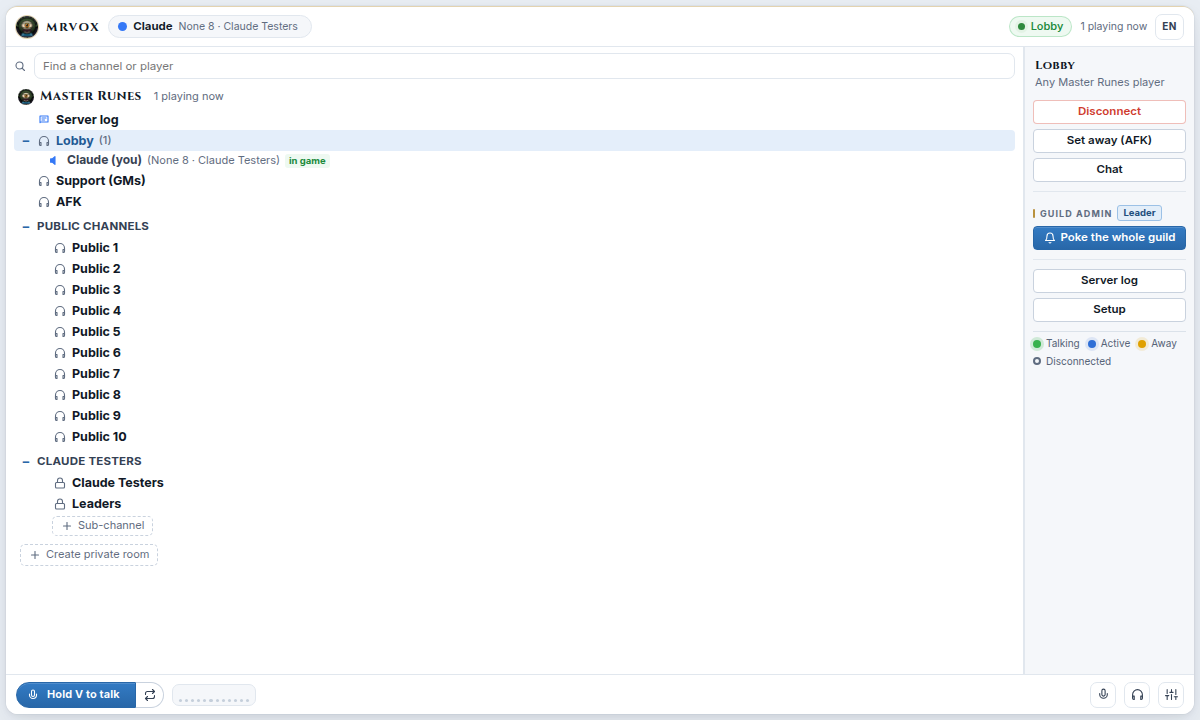
- Top bar: your character (click it to open Profile), the channel you are in, how many people are playing now, and the EN/ES language button.
- Channel tree (left): every channel you may enter and who is inside. Use Find a channel or player to search, and −/+ to fold a channel or a group.
- Right panel: the buttons for the selected channel (join, disconnect, away, chat, room tools, Server log, Setup) and the colour legend.
- Bottom bar: the talk button, the ⇄ mode switch, your level meter, and the Mute microphone, Deafen and Settings buttons.
Channels and who can enter
| Channel | Who can enter |
|---|---|
| Lobby | Any Master Runes player. |
| Public channels → Public 1 … Public 10 | Any player who can use MRVOX, guild members too. Everybody is equal there: no guild ranks and no guild tools; only the staff moderate them. |
| Support (GMs) | Any player: the place to ask a gamemaster for help. |
| AFK | Anyone. It is silent: nobody talks, hears or chats there. |
| Guild's → your guild → [guild name] | Members of that guild only. Guild channels are grouped in the Guild's section: under it, your guild by its name and emblem, and inside it the guild's channels. Every guild has its own fixed channel with the guild's name and emblem: it is there as soon as the guild exists (even when nobody is in it), follows a rename and goes away when the guild is disbanded. |
| Your guild → sub-channels | Every member of the guild. The leader and vice-leaders create them with + Sub-channel under the guild (up to 10, names of 2-24 letters or numbers, each name once), and rename or delete them with a right-click on the sub-channel or from the right panel. Deleting one sends whoever is inside to the guild channel. |
| Your guild → Leaders | The guild leader and vice-leaders only. |
| Private rooms | The owner and the players they invite. Nobody else even sees the room. Deleted at the daily server save. |
A lock icon marks the closed channels. You are in one channel at a time; joining another takes you out of the previous one.
Joining and leaving
- Join: double-click a channel (one tap on a phone), or select it and press Join channel (Entrar al canal). Enter also works.
- Move yourself: you can also drag your own name onto another channel.
- Leave voice: press Disconnect (Desconectar). Your name disappears from the channel at once.
- Connection drops: MRVOX reconnects by itself (Reconnecting…) and tells you Back in the channel.
Talking: push to talk or open mic
| Mode | How it works |
|---|---|
| Push to talk (default) | You are heard only while you hold the talk key (V by default) or the talk button at the bottom. Short clicks sound when the microphone opens and closes. |
| Open mic | You are heard whenever you speak, without pressing anything. Nothing is sent while you are silent. |
- The ⇄ switch next to the talk button changes between the two modes.
- A quick tap on the talk button in push to talk switches to open mic; in open mic, one click on it goes back to push to talk.
- You can also choose the mode in Settings → Talk → Talk mode.
Choosing the talk key
- Open Settings → Talk and press Change next to Push-to-talk key.
- Press any keyboard key, or the mouse wheel click, the back button or the forward button. Esc cancels.
The key is remembered in this browser. The left and right mouse buttons cannot be used, because the game needs them. A mouse button used for talking no longer makes the browser go back or forward.
Level meter and status colours
The bars next to the talk button show how loud your microphone is, after your input volume, so they show what the others hear. Blue bars: the microphone hears you but you are not sending (push to talk not held). Green bars: your voice is being sent.
| Light | Meaning |
|---|---|
| Green, pulsing | Talking |
| Blue | Active: connected and silent |
| Amber | Away: in AFK or away |
| Grey ring | Disconnected: reconnecting or just left |
Marks next to a name. Red marks everybody sees: a crossed microphone (microphone muted), crossed headphones (sound off: hears nobody and nobody hears them), and a crossed microphone with MOD (muted by a moderator). Grey marks only you see: a crossed speaker (muted for you) and a crossed eye with the name crossed out (ignored by you; they are not told). Also the guild rank (only in the guild's own channels, named as on the guild page, for example Leader, Vice-Leader or Member; there the members are sorted by rank), AFK, in game (playing right now) and BOT. Hover a mark to see what it means.
Mute and deafen
- Mute microphone: nobody hears you, in any mode, until you press it again. Others see a red microphone next to your name. It is remembered next time.
- Deafen (Hear nobody): you hear nobody and nobody hears you. Others see crossed red headphones next to your name. Press again for Sound back on. It is not remembered: every time you open MRVOX your sound is on.
The MRVOX chip in the game
While you are in a MRVOX channel, a small bar appears above your equipment in the game (computer layout). It shows the channel and how many people are in it, plus a microphone button.
- Dot colour: green when connected, blinking while you talk, red when muted, grey in AFK.
- Microphone button: mutes or unmutes you without leaving the game.
- Channel name: click it to bring MRVOX to the front.
- The Voice icon in the game menu is also green while you are connected and blinks while you talk.
Settings
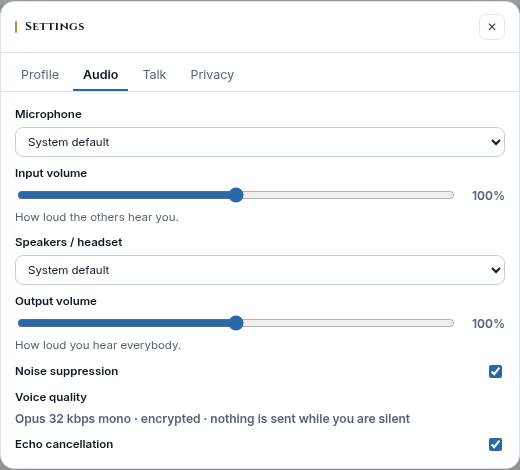
Open them with the Settings button at the bottom, with Setup in the right panel, or by clicking your name at the top (Profile). Audio and talk settings are kept in this browser; privacy settings are kept with your character.
| Tab | What you can set |
|---|---|
| Profile | Speaking as (your character), Set away (AFK) / I am back, MRVOX language (English or Español), Theme (Light or Dark) and a link to My account on the website. |
| Audio | Microphone and Speakers / headset (or System default), Input volume (how loud the others hear you, 0-200 %), Output volume (how loud you hear everybody, 0-200 %), Noise suppression and Echo cancellation (both on by default; a change applies the next time you join a channel). Also Hear reaction sounds and Reaction sound volume (the sounds other players play in your channel). |
| Talk | Talk mode, Push-to-talk key and Sounds (clicks when the microphone opens and closes, joins, leaves and calls). |
| Privacy | Who can call me and Who can poke me: Everybody, My guild or Nobody; and your Ignored players list with Ignore a player… and Unignore. |
| Moderation | Staff only: see below. |
Per-person volume
Click a person in your own channel: the menu has a Volume slider (0-200 %) and Mute for me, which silences that person only for you (a grey crossed speaker shows next to their name, only on your screen). Unmute for me undoes it. Both are remembered in this browser.
Away and the AFK channel
- Press Set away (AFK) to go away: you move to the silent AFK channel, where nobody hears you and you hear nobody.
- After 15 minutes with no activity at all you are sent there automatically. Talking (with the talk key or the open mic), anything you do in the game (a key, a click, a touch) and using MRVOX all count as activity, so playing and only listening never sends you away.
- To come back, press I am back, the talk key or the talk button: you return to the channel you were in.
- If you went away automatically, any activity (playing, talking or using MRVOX) brings you back. If you went away by hand, only I am back or the talk key/button does.
Channel chat
Press Chat in the right panel to open the text chat of your channel (Hide chat closes it; a number shows unread lines). Messages are seen only by the people in that channel, are not saved, and are cleared when you change channel. Up to 300 letters per message and 5 messages every 10 seconds (Slow down: wait a few seconds.). There is no chat in AFK.
Emoji and reaction sounds
The chat has a Master Runes emoji pack: about 40 pictures of creatures, items, skulls and party things. Press the demon button left of the chat box to open the picker, or type the code between colons, for example :demon:, :dragonlord: or :cc:. Typing :dra already opens the list filtered to those letters; click a picture to finish the word. Only known codes become pictures; everything else is shown exactly as typed. A message with only emoji (up to 5) is shown bigger.
The note button next to it opens Sounds: 8 short reactions (GG, Loot bell, Level up, Laugh, Applause, Ouch!, Roar, Oops). A sound plays for the people of your channel only, with a small card at the top (who played what, and where) and a line in the chat. You can play 3 sounds a minute, one every 8 seconds; the number on the button shows how many you have left and the picker shows when the next one is ready. The server checks this limit too.
Profile frames
Every person shows a small round portrait of their outfit with a ring, in the channel tree, the chat, the top bar and the sound cards. One ring per person, the highest wins: staff (red ring and GM tag for gamemasters, blue ring and CM tag for community managers) › guild leader (gold double ring and a small crown) › vice-leader (silver double ring). Everybody else has a thin steel ring. Guild rings show in every channel; the rank tags (Leader, Vice-leader…) only in the guild's own channels.
| Loyalty shield | Months of play |
|---|---|
| Green, one chevron (Loyalty I) | 3 or more |
| Blue, two chevrons (Loyalty II) | 6 or more |
| Violet, three chevrons (Loyalty III) | 12 or more |
HD voice
Every channel uses HD voice: Opus at 64 kbps, mono, the same for everybody. The small HD mark next to the channel name at the top (and HD VOICE · Opus 64 kbps in the right panel) shows it; hover it for details. It uses about 8 KB/s per person talking and nothing while nobody talks.
Pokes
- Click anyone in MRVOX (any channel) and choose Poke. Add an optional message (up to 120 letters) and press Send poke.
- They get a pop-up with a sound wherever they are in MRVOX; it closes with OK or by itself after 30 seconds. If their window is in the background, its title flashes.
- You can poke the same person once every 10 seconds, and only while they are in MRVOX.
Guild poke: the guild leader and vice-leaders have a Poke the whole guild button in the right panel. A window asks for the message (2-120 letters) and shows who sends it. It reaches every guild member in MRVOX (Premium members only, as MRVOX itself), in any channel, with a Go to the channel button. Once every 30 seconds. Guild pokes always arrive, whatever the member's poke setting, unless the member ignores the sender.
Calls between characters
- Click a person and choose Call. You see Calling [name]… with Cancel.
- They hear a ring and see [name] [vocation] [level] is calling you with Accept and Decline.
- If they accept, you both move to a private call. Hang up ends it and takes you back to the channel you were in.
- Without an answer in 30 seconds you see [name] did not answer.; a refusal shows [name] declined the call.
You can start up to 4 calls per minute. If the other player does not accept calls from you (their Who can call me setting) or ignores you, you only see [name] is not taking calls.
Ignoring players
Choose Ignore in a person's menu, or Settings → Privacy → Ignore a player…. You never hear them, their chat lines and pokes are hidden, and they cannot call you. Their name shows crossed out with a grey crossed eye, only for you, so you remember it. They are not told and nobody else can see it. Unignore undoes it.
Private rooms
- Create: press Create private room at the bottom of the tree and give it a name of 2-30 letters or numbers. You can own up to 3 rooms.
- Invite: select your room and press Invite a player (up to 50 invitations per room). The room then appears in their tree.
- Remove: Remove a player takes back an invitation. To take someone out who is inside right now, use Kick (5 min to 2 h).
- Delete: Delete room deletes the room and all its invitations, after a confirmation.
- Rooms and their invitations are deleted at the daily server save; only the public and guild channels are permanent.
Moderation
| Who | Where | What |
|---|---|---|
| Guild leader and vice-leaders | Their guild's own channels: the guild channel, its sub-channels and Leaders | On lower ranks only: Mute/Unmute, Mute all/Unmute all, Kick (5 min to 2 h, from all the guild's channels), Move to… between the guild's channels |
| Room owner | Their private room | Mute/Unmute, Mute all/Unmute all, Kick (5 min to 2 h), Move to… |
| Staff | Every channel | All of the above, plus Ban from MRVOX… |
- Guild ranks: in the guild's channels a higher rank acts on a lower one: the leader on everybody, vice-leaders on members only. On the leader and on other vice-leaders the tools are greyed out with Only the leader can do this, and the server refuses them too.
- Mute takes away that person's right to talk in that channel: they cannot talk until a moderator presses Unmute, even if they leave and come back. Everybody sees a crossed microphone with MOD, and they see Muted by a moderator.
- Mute all / Unmute all (right panel, in the channel you are in) mute every person of a lower rank in that channel, or let them talk again. They last like a single Mute.
- Kick [name] for N min: choose 5 min, 15 min, 30 min, 1 h or 2 h first. In a guild the kick covers all the guild's channels (the guild channel, Leaders and the sub-channels): they are sent to the Lobby and see You were removed from [channel] for N min by [name]., and those channels show Back in N min until they can return. Elsewhere it covers that channel.
- Move to… sends them to another channel you also manage; you can also drag and drop their name onto it. Guild leaders and vice-leaders move people only between their guild's own channels (and only leaders and vice-leaders into Leaders): to get someone out of the guild channels, kick them.
- Staff members cannot be muted, moved or kicked by players.
Staff bans: Ban from MRVOX… with 1 hour, 24 hours, 7 days or Permanent and an optional reason. It covers the whole account (all its characters) and removes them from voice at once. The staff-only Moderation tab lists who is in voice and where (names only, staff do not listen), with Actions, and the banned accounts with Unban.
Beholder bot and the Server log
At the top of the tree, Beholder (marked BOT) shows online or offline. Click Server log to open a live window with deaths, updates, news, server status and announcements from the last days, refreshed every 15 seconds. Staff also have Staff alerts.
Microphone permission
- The browser asks for the microphone the first time you join a channel. Choose Allow.
- If you blocked it, MRVOX shows Allow the microphone in your browser to talk. Open the site permissions (the icon left of the address bar), allow the microphone and join the channel again.
- Switching channels keeps the microphone: you are not asked again. It is released when you leave voice or go to AFK.
- If nobody hears you, check that the meter moves when you speak and that the right Microphone is chosen in Audio.