
Cast
Cast lets other players watch you play live. Viewers see the map (and your interface if you choose to show it), 5 to 30 seconds behind you (you choose the delay), never your chat or private messages.
- Starting a cast
- Casting with a password
- What viewers see
- Watching casts
- The caster card
- Signal and end of a cast
- Viewer limits
- Saved casts
- Clips for TikTok, YouTube and Instagram
- Privacy
Starting a cast
Press the Cast icon in the game menu next to your equipment (on a computer; the phone layout has no Cast button). The Cast window asks who can watch you:
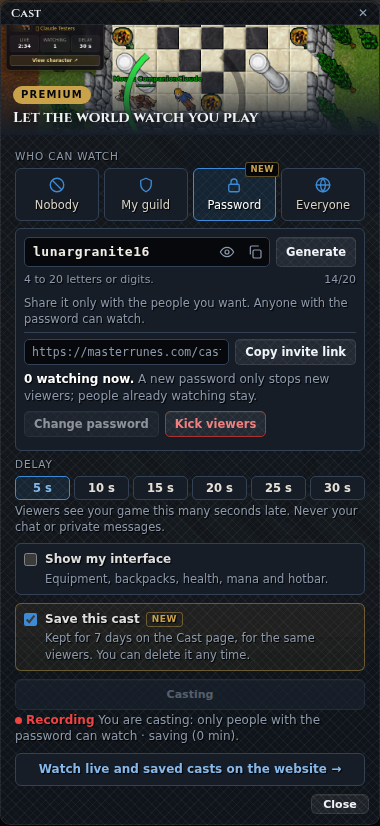
| Option | Who can watch |
|---|---|
| Nobody | Nobody: you are not casting. |
| My guild | Members of your guild only. You need a guild. |
| Password | Only the people you give the password to. On the website they type it as a PIN. |
| Everyone | Every player, and anyone on the website's Cast page, even without an account. It is selected when you open the window and you are not casting. |
- Pick an option and press the gold button under them: Start cast to begin, Change to switch who can watch while casting, or choose Nobody and press Stop cast. Picking an option alone does nothing. The Cast icon turns red while you are casting.
- Your choice is remembered for that character in this browser: the next time you log in with it, the cast starts again by itself after a few seconds.
- To stop, open the window again and choose Nobody.
Under the options, Delay sets how many seconds late your viewers see your game: 5 s, 10 s, 15 s, 20 s, 25 s or 30 s (30 s at first; the game remembers your choice). You can change it while you cast with Change: a shorter delay makes your viewers jump forward, a longer one keeps their picture still for those extra seconds. The Live casts page of the website shows each cast's delay.
Below the delay, Show my interface (off at first) also shows your viewers your equipment, your open backpacks, your health, mana, capacity and soul, and your bottom hotbar. You can switch it on or off at any time, also while you cast: the viewers see the change with the same delay. Your chat is never shown, and hotbar text slots only appear as a pencil icon, without their text.
Casting with a password
Choose Password and type 4 to 20 letters or digits (no spaces or symbols), or press Generate for one like amberwolf27. The eye button shows it and the copy button copies it. Start cast stays off until the password is valid. Only your browser remembers it, so you can see and copy it later; the server keeps only a scrambled form of it, never the password itself.
- While you cast with a password, Copy invite link copies the link to your cast on the website (masterrunes.com/cast?watch=<your name>). The link never contains the password: send the password separately to the people you want.
- The window shows how many people are watching (3 watching now.).
- Type a new password and press Change password (or Change): people already watching stay, new viewers need the new one.
- Kick viewers asks once and then sends everyone watching out: to come back they must enter the password again.
What viewers see
- What your character sees on the map: the terrain, creatures, players around you, their movements, effects and light.
- Only if you switch on Show my interface: an Interface panel in the top-right corner (at the bottom on a phone, folded until tapped) with your equipment, open backpacks, health, mana, level, capacity, soul and bottom hotbar.
- Never your chat, private messages or account data.
- Everything arrives 5 to 30 seconds late (you choose), so nobody can use your cast to find you in real time.
- The map fills the viewer's screen, centred on you; game panels only appear through Show my interface.
Watching casts
Casts are watched on the website only. The Cast window in the game has a Watch live and saved casts on the website → button that opens this page.
The 📡 Cast tab of the website opens the Casts page, with two separate sections, each with its own filters (player, guild and access): Live now and Recordings. In Live now, one card per cast (newest first; on a phone, swipe sideways, on a computer use the arrows) and, below, a table with the same casts: player (level and vocation), guild, who can watch, how long it has been live, how many are watching and ▶ Watch. The page refreshes by itself every 15 seconds.
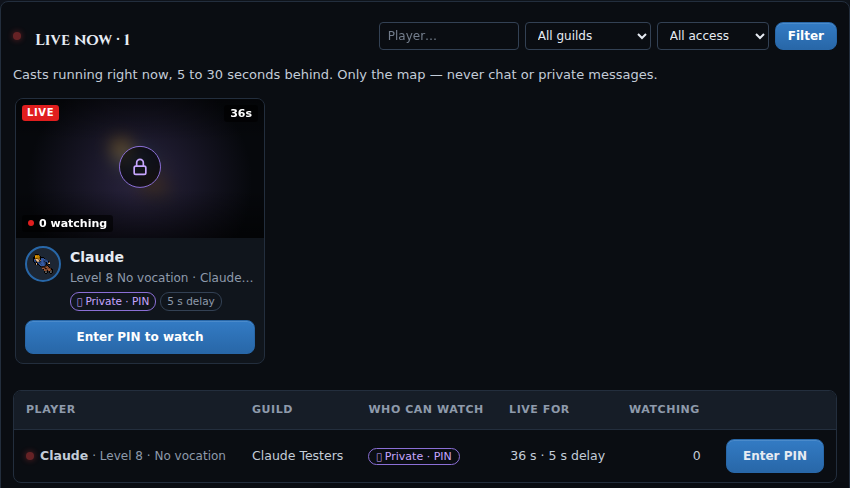
Each card shows:
- A small picture of the caster's map with a red LIVE badge, how long it has been live and how many are watching. The game takes a new picture about every minute, and the website only shows it once it is as old as the cast's delay, so it never shows more than the cast itself. Speech and chat are never in the picture.
- Until the first picture arrives (about a minute after the cast starts), the card shows the character's outfit instead.
- The player's outfit, name, level, vocation and guild, who can watch (Public, Private · PIN or Only guild · <guild name>), the delay (30 s delay) and ▶ Watch cast, which opens the cast like ▶ Watch.
- A private cast shows a blurred picture with a lock instead of the map, and Enter PIN to watch.
- When nobody is casting there are no cards and the table says Nobody is casting right now.
| Cast | Who sees it on the website |
|---|---|
| Public | Everyone, even without logging in. |
| Private · PIN | Listed to everyone (name, level, how long, how many watch), but the picture is hidden and watching needs the PIN. |
| Only guild · <name> | Only when you are logged in with an account that has a character in that guild. |
If a cast ended before you pressed ▶ Watch, the page says That cast is no longer live.
Enter PIN to watch opens a small window: type the PIN the caster gave you and press ▶ Watch. A wrong PIN says Wrong PIN. 4 tries left. (and so on); after 5 wrong tries you see Too many tries. Try again in 10 minutes. Once the PIN is right, this browser does not ask again for that cast until it ends, the caster changes the password or presses Kick viewers. An invite link to a private cast opens the same window.
The caster card
While you watch, a card in the top-left corner shows who is casting:
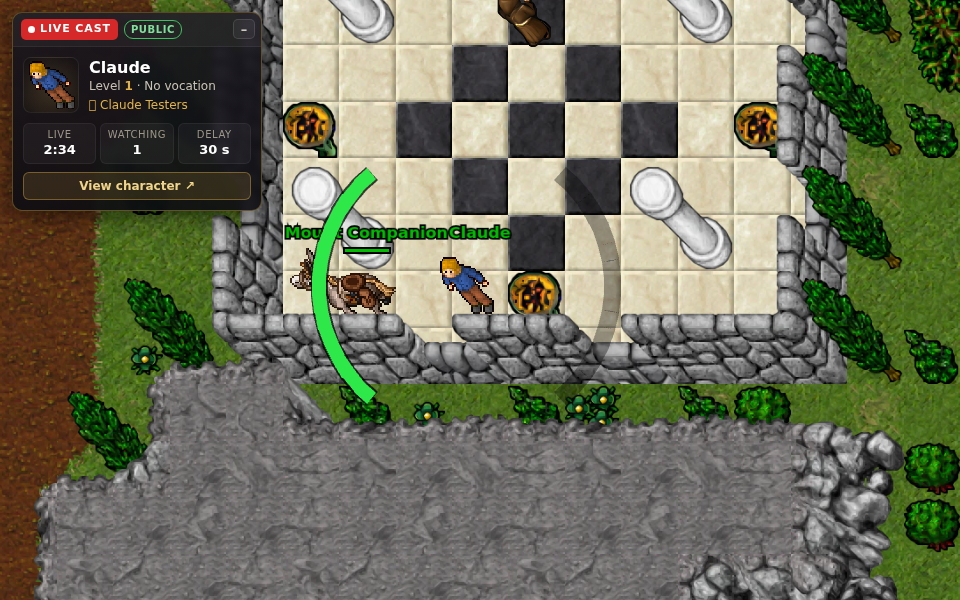
- A red LIVE CAST badge with a blinking dot, and PUBLIC or GUILD.
- The player's outfit, name, level, vocation and guild.
- Live (how long the cast has been running), Watching (updated as people come and go) and Delay (the delay the player chose, 5 to 30 s).
- View character ↗ opens the player's page on the website.
- The – button folds the card into a small pill (+ unfolds it); the choice is remembered.
Signal and end of a cast
| You see | Meaning |
|---|---|
| Waiting for [name]'s cast (it runs [N] seconds behind)… | You are in; the picture starts once the delay of that cast has passed. |
| LIVE CAST (red) | The picture is arriving normally. |
| NO SIGNAL (grey) | Nothing has arrived for 45 seconds. A full picture comes at least every 30 seconds even if the player stands still, so this means a problem on their side. |
| The cast is over. [name] lost the connection. | The player sent nothing for 75 seconds and the cast was closed for everybody. |
| The cast is over. [name] stopped casting. | The player turned the cast off. |
| This cast is not live. | The cast had already ended when you arrived. |
Viewer limits
| Cast | Viewers at once |
|---|---|
| Guild | 20 |
| Public | 50 |
When a cast is full, new viewers see This cast is full.
Saved casts
When you press Start cast, the game asks whether to save it: Save it (7 days), Don't save or Cancel. The Save this cast box (under Show my interface) is the answer it suggests. Your cast is then also recorded, and the recording stays on the website's Cast page for 7 days, for the same people who could watch it live. It is off at first and remembered for that character, like the delay. It can only be ticked with My guild or Everyone.
- While it records, the line under the button says Recording and You are casting: … · saving (N min).
- You can tick or untick it while casting and press Change: ticking starts a new recording, unticking closes the current one. The cast itself goes on.
- Switching between My guild and Everyone while saving closes the recording and starts a new one, each with its own visibility. Stop cast closes it.
- The recording is exactly what your viewers got, with the same delay: the map, and your interface only if Show my interface was on. The last seconds of the delay, which nobody saw, are not kept. Recordings shorter than 10 seconds are thrown away.
- There is no limit of hours per account. Every recording is deleted 7 days after it started.
On the Cast page, below the live casts and with its own filters, Recordings shows the recordings as cards (newest first), clearly apart from the live ones: a grey ▶ Recorded label instead of the red LIVE, the map picture with Public, Private or Only guild and the length, the character with level and vocation, the guild and date, how many views, in how many days it is deleted, and ▶ Watch. Filter them by player name, guild, or access (Public, Private · PIN, Only guild). Guild recordings are only listed to members of that guild while logged in on the website. Recordings of a password cast keep it: they show a blurred picture and Enter PIN to watch, with the same PIN as the cast (the last one, if the caster changed it while casting) and the same 5 tries.
▶ Watch opens the recording in the game page, with a bar on top (Recorded <date> · <length> · <views>, ← Back to casts) and the controls below: the seek bar, Pause / Play, the time, 1x, 2x and 4x, and Jump to a time such as 00:12:30 with Go. Moving to another time starts from the nearest picture of the world before it (one every 30 seconds) and plays on from there.
Logged in, My recordings lists your own recordings with Expires in N days and Delete. Deleting one removes it at once for everybody. Deleting a character deletes its recordings. A recording of a password cast has a PIN box there: you watch it without the PIN, and you can set a new one with Change PIN (the old PIN is never shown).
Clips for TikTok, YouTube and Instagram
Only you can turn your own recordings into a video. Open one with ✂ Make a clip in My recordings, or press ✂ Make a clip at the right of the controls while you watch it (logged in on the website). Nobody else sees that button: other players and visitors can only watch the recording.
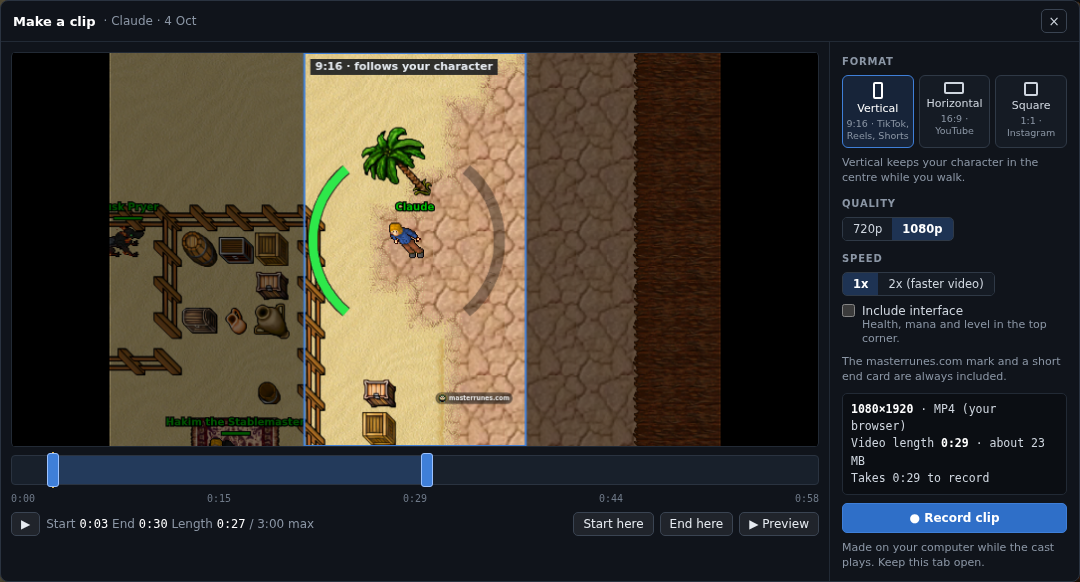
- Choose the part: drag the two blue handles on the bar, or move to a moment and press Start here and End here. A clip lasts up to 3 minutes (Length shows it). ▶ Preview plays just that part.
- Choose the format (table below), the quality (720p or 1080p) and the speed: 1x, or 2x (faster video) for a video half as long.
- Include interface adds your level, health and mana in the top corner. It is only available if the cast was saved with Show my interface on.
- Press ● Record clip. The recording plays in real time while your browser makes the video (a 1-minute clip takes about 1 minute; at 2x, half). Keep the tab open and in front: if you hide it, the clip stops. Cancel stops it at any time.
- When it says Your clip is ready, press ↓ Download. The file is called masterrunes-<character>-<date>-<time>.mp4 (or .webm). Make another clip lets you make more.
| Format | Size | For |
|---|---|---|
| Vertical 9:16 | 1080×1920 (720×1280 at 720p) | TikTok, Instagram Reels, YouTube Shorts. Your character stays in the centre. |
| Horizontal 16:9 | 1920×1080 (1280×720) | YouTube. Shows the whole map view. |
| Square 1:1 | 1080×1080 (720×720) | The Instagram feed. |
Every clip carries the Master Runes mark: a small masterrunes.com badge in a corner and, at the end, 1.5 seconds with the emblem and Play free at masterrunes.com. They cannot be removed.